Rabbit Lets You Watch Netflix, YouTube, Browse the Web with Friends


Rabbit Lets You Watch Netflix, YouTube, Browse the Web with Friends
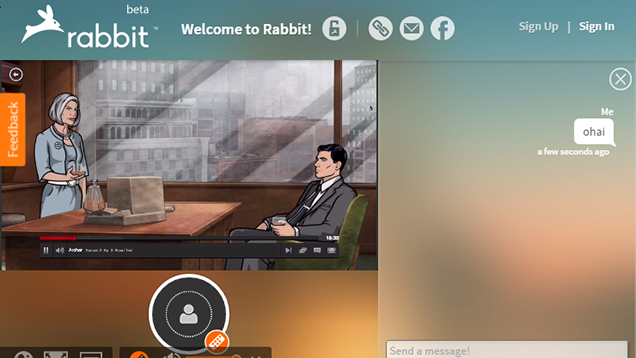
Chrome/Opera: Watching Netflix online with other people usually involves counting down and hitting play together. Rabbit gets around this by allowing everyone to watch the same feed together. The service supports Netflix, YouTube, Hulu, or anything that runs in the browser.
At its core, Rabbit is a group chat service with voice and video support. In that respect, it's not much different than Hangouts. Where it distinguishes itself, however, is by allowing you to launch a window where you and your other guests can watch things like Netflix together. As you'll quickly notice, what you're really watching is a small virtualized Chrome instance, so anything that can be played in a browser can be shared with your friends. It even has Adblock Plus pre-installed.
Source: http://lifehacker.com/rabbit-lets-you-watch-netflix-youtube-browse-the-web-1678199419?utm_campaign=socialflow_lifehacker_facebook&utm_source=lifehacker_facebook&utm_medium=socialflow

Buying a New Mobile? Check Out These Sites!

For how many times you want to buy a mobile (or for that matter any other gadget) but you are in a dilemma. Don’t worry since we live in WEB 2.0 era, so you can utilize the web by following these simple steps:

STEP 1- Check the prices of mobile through these sites considering your budget

.
http://www.fonearena.com/mobile_phone_pricelist.html
http://www.india-cellular.com/Handset-Prices.htm
http://www.indiagsm.com/phone_prices.php
http://mobilephone-price.blogspot.com/


STEP 2- Read detailed specs of your shortlisted mobiles & distinguish them on this basis.

http://www.indiagsm.com/
http://www.compareindia.com/products.php?sectionid=23
http://www.fonearena.com/brands.php
http://www.gsmarena.com/

STEP 3- If you are still on crossroads
, see expert reviews of the mobiles.
http://www.mobile-review.com *
http://www.mobileburn.com/
http://reviews.cnet.com/cell-phones/
http://www.phonearena.com/ *
http://www.gsmarena.com/reviews.php3 *
http://www.reghardware.co.uk/reviews/phones/
http://www.trustedreviews.com/mobile-phones/
http://www.tech2.com/india/mobile/
http://www.techtree.com/techtree/jsp/list.jsp?list=prodcat_review_cathome&prodcat_id=451
http://www.phonegg.com/

(*-Recommended)

Get Things Done Faster with these Microsoft Word Tips

Source: http://www.labnol.org/software/word-tips-tricks/28267/

Here are 10 tips and tricks for Microsoft Word that will help you get things done faster and more efficiently than ever before. I have created the animated GIFs with Word 2013 but the tricks will work just fine with older versions of Microsoft Office as well. Let’s get started.

1. Select Text Quickly

You can triple-click anywhere within a paragraph to select the entire paragraph in Word. Or press the CTRL key and click anywhere within the sentence to select the entire sentence.
You can also select rectangular blocks of text in a Word document, similar to the marquee tool in Photoshop, and apply formatting to the selected area. Hold down the ALT key and drag your mouse to select any rectangular area.
Select Rectangular Block

2. The Extended Clipboard

Word has a useful “Spike” feature that you can use cut (move) text and images from multiple locations in a document and paste them all at once to a different location.
To use Spike, select some text, images or other objects in your document and press CTRL+F3 to move that selection to the Spike. You can highlight and append more entries to the same Spike using the CTRL+F3 shortcut. Now press Ctrl+Shift+F3 to paste the content of the Spike anywhere in the document.

3. Move Around Faster

If you are working on a lengthy Word document, you can press the Shift+F5 keyboard shortcut to cycle through the spots that you have edited most recently. Also, when you open an existing document inside Word, the same Shift+F5 shortcut will take you to the location that you were working on when the document was last closed.

4. Change the Sentence CASE

Select some text in Word and press Shift+F3 to quickly change the case of the selection. It toggles between UPPERCASE, lowercase and Camel Case (first letter in capital) and should come handy if you’ve accidentally left the CAPS LOCK key on while typing.

5. Write Anywhere on a Page

Did you know that you can use your Word document as a whiteboard and write your text anywhere on the page. Just double-click wherever you want to type your text and start writing.
write anywhere

6. Convert to Plain Text

When you copy snippet from a web page into Word, all the styles and formatting are retained. There’s however an easy way to remove the styling from any block of text in Word – just select the block and press Ctrl+Space Bar and the rich text will be transformed into plain text.

7. Move Text without Copy-Paste

Most people use the Cut-Paste (Ctrl-x Ctrl-v) route to move text from one location to another within a Word document but there’s an alternate way as well. Highlight any block of text, press F2 and then place the cursor at the spot where you wish to move that text. Press Enter and the selection will be moved.

8. Insert Unicode Characters

If you know the Unicode code of a character, you can quickly add it to your document by typing the code followed by Alt+x. For instance, the code for Indian Rupee symbol is 20B9 – type 20B9, press Alt+x and the code will be replaced by the actual Rupee symbol.

9. Add Placeholder Text

There’s a Lorem Ipsum generator built inside Word to help you insert filler text anywhere inside the document. Type =rand(p,l) and press Enter to insert ‘p’ number of paragraphs each having ‘l’ lines. For instance, =rand(3,6) will generate 3 dummy paragraphs  with 6 lines each.
Lorem Ipsum Word
The other option is =lorem(p,l) that fills your Word document with pseudo-Latin text commonly used in web design projects.

10. Word’s Hidden Calculator

Your copy of Microsoft Word has a hidden calculator that can handle all the common arithmetic operations. You can write the Maths expression in your document, highlight it and press the Calculator button – the results of the calculation will be displayed in the status bar.
Go to Word Options -> Quick Access Toolbar, switch to All Commands and add the Calculate Command to your Quick Access Toolbar.


Written by Amit Agarwal, personal technology columnist and founder of Digital Inspiration. You can follow him on the social web or sign up for the email newsletter for your daily dose of how-to guides and video tutorials.

Save your Hard Disk Space by Optimizing Photos

Today digital cameras comes with mega pixels and one of the problem with these high pixels is that the size of the photo it occupies on hard is very much larger than normal ones, some of the photos are 3-5MB in size. If you maintain a good collection of photos on your hard disk, then it might take considerable amount of space as well. Photo Vacuum Packer is a free tool which frees up your disk space by optimizing your photos. The photo quality is not destroyed and more over you can select the max pixel size using this tool while optimizing.


You only need to select the folder and it can automatically include all the sub folders, find out the number of photos and their current size. In the settings page, you can actually chose whether you want high quality photos.


Now once you start the process what this tool does is optimize all the photos selected into a temp folder (you can change the temp folder) and then confirms you if you want to replace the optimized photos with the original ones. This is one special feature we liked about this tool. The optimization of photos are really good and the quality is top notch.


We tested this tool using 1GB of photos and the results are amazing, it optimized the photos without loss of quality to 314 MB, a saving of 70% of hard disk space. We would give 9/10 for this tool except for the fact that the tool is ad supported.

Download Photo Vacuum Packer

Source: https://www.facebook.com/note.php?note_id=476479185391

Convert Torrents To Direct Links And Download Them With IDM

Nowadays torrents are widespread for safe and robust public file sharing. Every body today uses torrents to share data to a large audience. But as we know downloading of torrents requires a torrent client to be installed on the destination machine or the machine that needs to download the content of the torrent. But at many places like schools, colleges, access to the internet by these torrent applications is disabled. So in those situations you can easily convert a torrent to a direct link and download it anywhere. These direct links also support download managers like  IDM.
How To Convert Torrent Files To Direct Download Links :
1. Download any torrent from any popular site like torrentz.eu or kat.ph or anyone of your favourite torrent sharing website. You can also copy the URL of the torrent file in case you know how to do it. Normal users must adhere with downloading of torrent file.
2. Go to zbigz.com. You will see a screen like below. If you copied the URL then paste it in the box and click the “GO!” button. Else click the  ”Upload .torrent file” button, browse the torrent file you downloaded and click the “GO!” button.
3. On the next screen you will be asked for the “Free” or the “Premium” option. As the name suggests premium is a paid feature with some added advantages. Choose free if you want to proceed without purchasing the premium package.
4. Now your torrent will be cached. It will take just a few seconds because zbigz caches the torrents at a much faster speed.
5. After your torrent is completely cached it will be available to you in a zip format. Click the .zip button. If you are a free user you may again be asked to choose from the “free” or the “premium” service. Just click the “free” button and your download will be started. If you have IDM installed as the default download manager then the file will be automatically added to the IDM Downloads queue.
Difference Between Free And Premium Service :
There is not a huge difference between the free and the premium service for a normal user. You get a benefit of speed with premium option if your connection’s bandwidth is more than 1.2 Mbps. Maximum size of the torrent can exceed 8 GB of size, which is not required in most of the cases. Your file will be available for 7 days in your account (free), we do not need it for more than that. You will obviously make a file only when you are going to download it. You can download 2 files simultaneously using zbigz. Here you can consider for a paid membership if you need to download a lot of torrents and that too simultaneously. Ads do not make a difference, so you can continue being a free user.
VERDICT
Converting torrents to direct links has many advantages. You can use any download manager of your choice, my favourite one is Internet Download Manager. You do not need to seed anything, that means it saves your bandwidth. The best part is that you get the maximum speed whatsoever, that means the website caches all the files in one go, it doesn’t really matter if there are no seeders when you download. Many of the files get stuck at the end because seeders stop seeding that file. This can never happen with the direct links. So visit zbigz.com and convert all the torrent files you want to download to direct links.
Source: http://www.tricks4web.com/2013/05/convert-torrents-to-direct-links-and.html